 ASTERION
The Creative Delivery Engine
Every ambitious creator faces a two-sided challenge: shipping complex, multi-stage deliverables (software builds, manuscripts, maker projects) while simultaneously capturing, organizing, and synthesizing research notes.
Asterion unites these two halves: the Projects Kanban Board moves deliverables through progress-based pipeline stages, while the Knowledge Vault provides an offline, tag-indexed Second Brain with syntax-rendered Markdown preview.
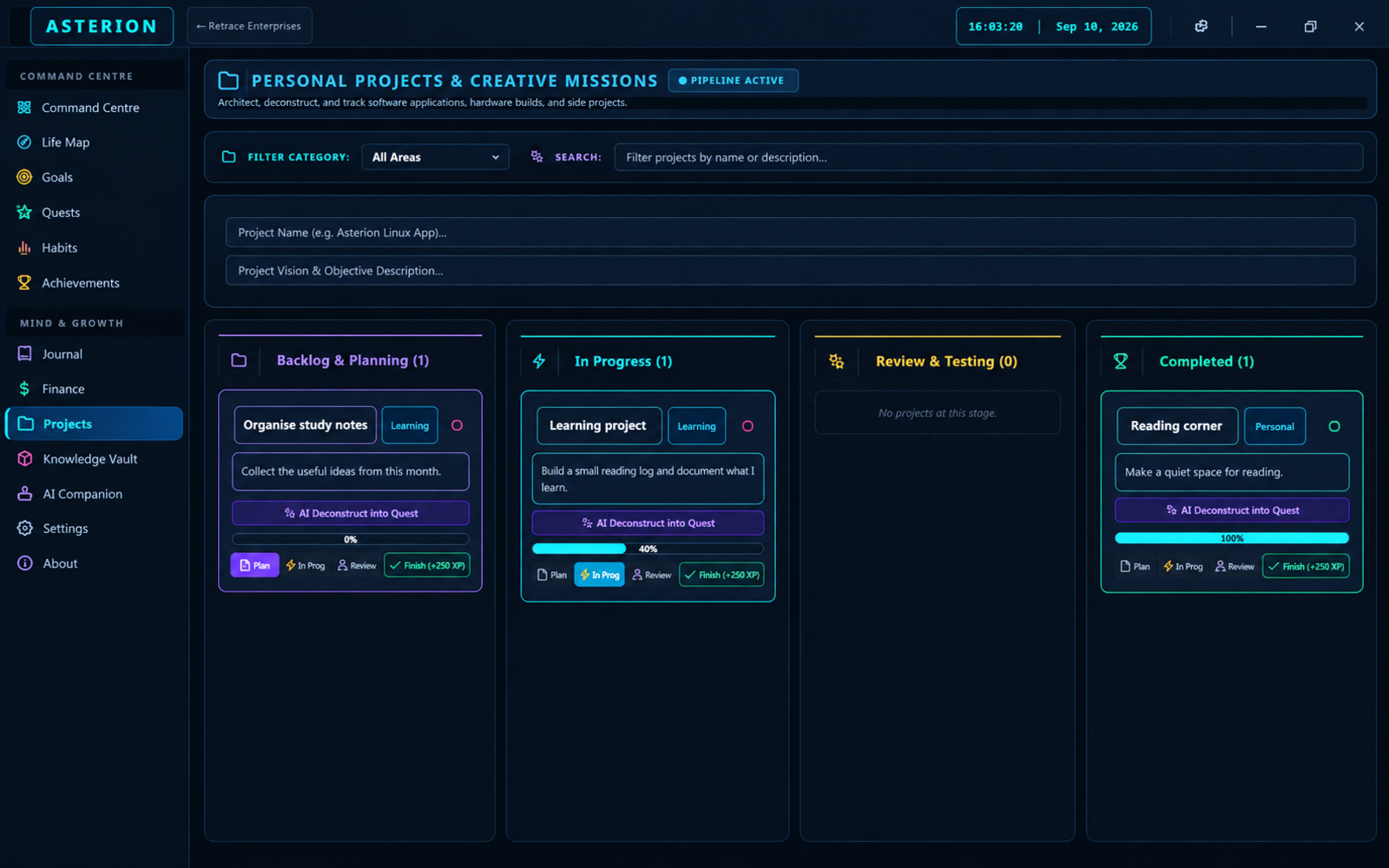
Kanban Project Pipeline & Percentage Stages
Projects represent substantial creative deliverables moving through discrete development stages.
- Open Projects from the sidebar or press Alt+7.
- Enter project title:
Learning project. - Assign domain area: choose
Learning(or Projects, Career, Creativity). - Add a short description outlining the core deliverable and target completion date.
- Click Create Project. The card enters the Planning stage.
- Understanding the 4 Kanban Stages: Columns are strictly tied to progress percentages:
- Planning (<25%): Conceptual phase, scoping, architecture, and preliminary research.
- In Progress (25%–74%): Active execution, core build, draft writing, or coding.
- Review (75%–99%): Polish, testing, editing, refactoring, and quality assurance.
- Completed (100%): Finished and shipped deliverable!
- Use stage movement buttons (
Plan,In Prog,Review,Finish) to advance progress. Clicking Finish (+250 XP) archives the card and awards milestone XP!
Project AI Deconstruction into Tactical Quests
A project is too large to execute as a single task. Asterion allows you to deconstruct large deliverables using the on-device AI Companion.
- Open AI Companion from the sidebar or press Alt+0.
- Enter the prompt:
Break down my project "Learning project" into 3 tactical quests with subtasks. - The AI Companion inspects your stored project description and generates structured recommendations.
- Review the proposed quests and click Create Quest directly from the AI response card to import them immediately into your Quests module!
Pro-Tip: Always inspect AI-generated quest titles and difficulty ratings before confirming. You maintain final editorial discretion over what enters your active quest queue.
Second Brain Notes in Knowledge Vault
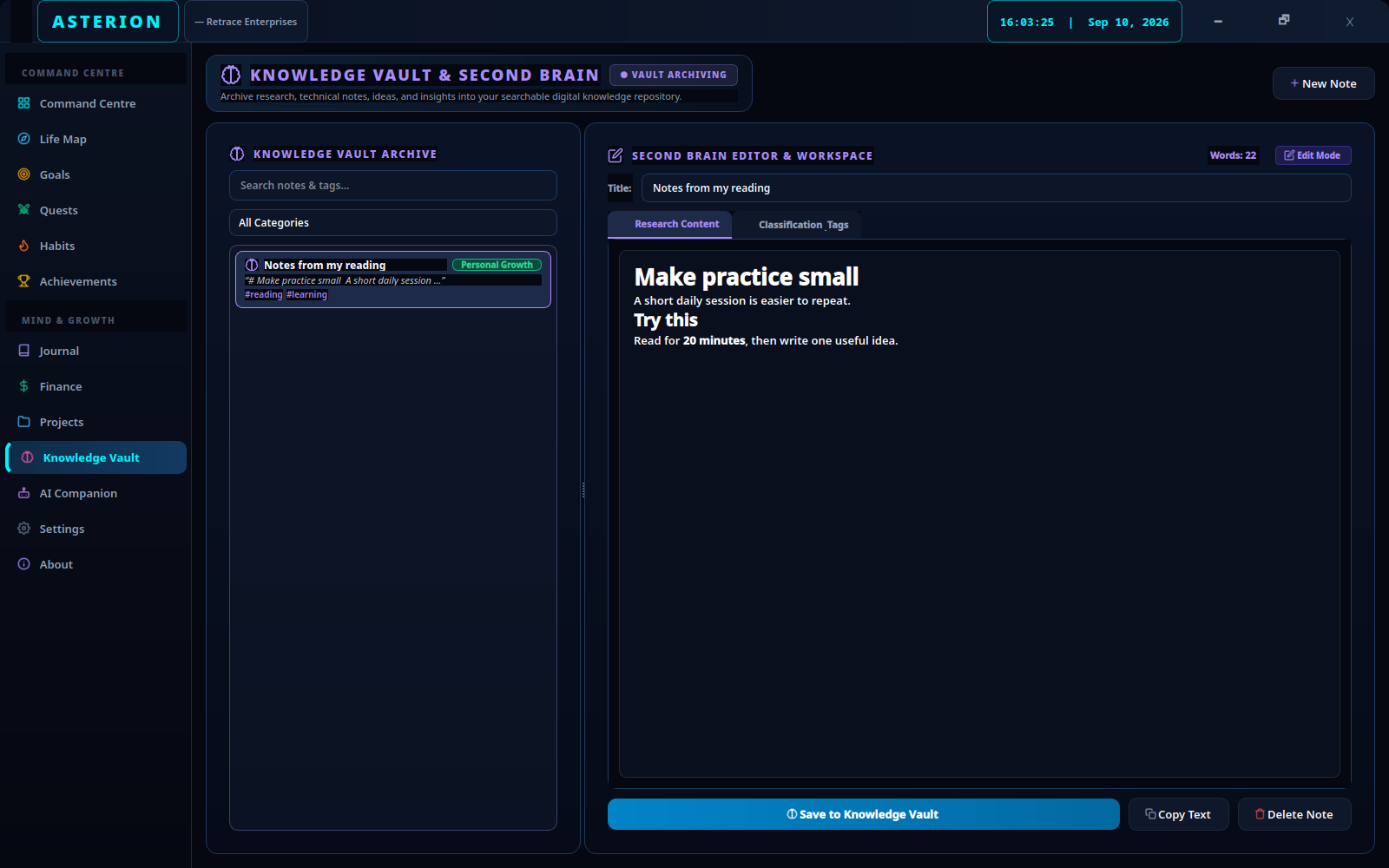
The Knowledge Vault is your private repository for insights, book summaries, code snippets, and research.
- Open Knowledge Vault from the sidebar or press Alt+8.
- Click New Note.
- Enter note title:
Notes from my reading. - Select a Category Classification:
- Software Engineering 💻: Code patterns, architecture notes, and terminal commands.
- Architecture 🏛️: System design, schemas, and infrastructure plans.
- Science 🔬: Technical papers, research data, and experiments.
- Philosophy 📜: Mental models, stoic reflections, and ethical frameworks.
- Design 🎨: UI/UX principles, typography, color palettes, and mockups.
- Personal Growth 🌱: Book summaries, psychological insights, and habits.
- Add searchable tags separated by commas:
reading, learning, architecture. - Write your markdown notes in the editor while monitoring the live word counter.
- Click Save to Knowledge Vault.
Workflow Deep-Dive: DraftEditor Crash Protection
Asterion’s Knowledge Vault integrates an autonomous DraftEditor engine. If your computer reboots or the application closes before you click Save, your in-progress note is preserved in temporary draft storage, ready for recovery on next launch.
Markdown Preview & Syntax Best Practices
Knowledge Vault supports dual-mode editing and formatted reading.
- Select any saved note from the vault timeline list.
- Select Markdown Preview on the editor toolbar.
- Asterion renders headings, bullet lists, bold text, and code blocks using a clean, readable typography theme.
- Select Copy Markdown to copy the raw text to your system clipboard for use in external documents.
- Select Edit Mode to return to text modification.
Caution: Always click Save to Knowledge Vault before switching between Edit Mode and Markdown Preview. Because Asterion utilizes a rich-text rendering widget, saving preserves your raw Markdown syntax cleanly in SQLite.
Cross-Linking Knowledge with Deliverables
To maintain maximum synergy between your Second Brain and your Kanban pipeline, reference your Knowledge Vault tags inside your Project descriptions. When working on a project, search for matching tags in the Vault to immediately resurface relevant documentation, code snippets, and research notes.
Troubleshooting & Edge Cases
| Symptom | Solution |
|---|---|
| Note appears missing from Vault | Check the category filter dropdown in Knowledge Vault and select All Categories. If you used the search box, clear any active filter text. |
| Project card cannot be moved to next column | Projects move strictly according to progress percentages. Click the appropriate stage button (In Prog for 50%, Review for 85%, or Finish for 100%) to advance the card. |
| Markdown formatting does not render | Confirm that standard Markdown syntax is used (e.g. # Heading with a space after the hash, - List, **bold**). Save the note before clicking Markdown Preview. |