 ASTERION
Ground Your Day in Cognitive Reality
Most personal planning systems fail because they treat human energy as an infinite conveyor belt. A traditional todo app encourages you to dump fifty items into an unprioritized backlog, leaving you feeling defeated by noon when life intervenes.
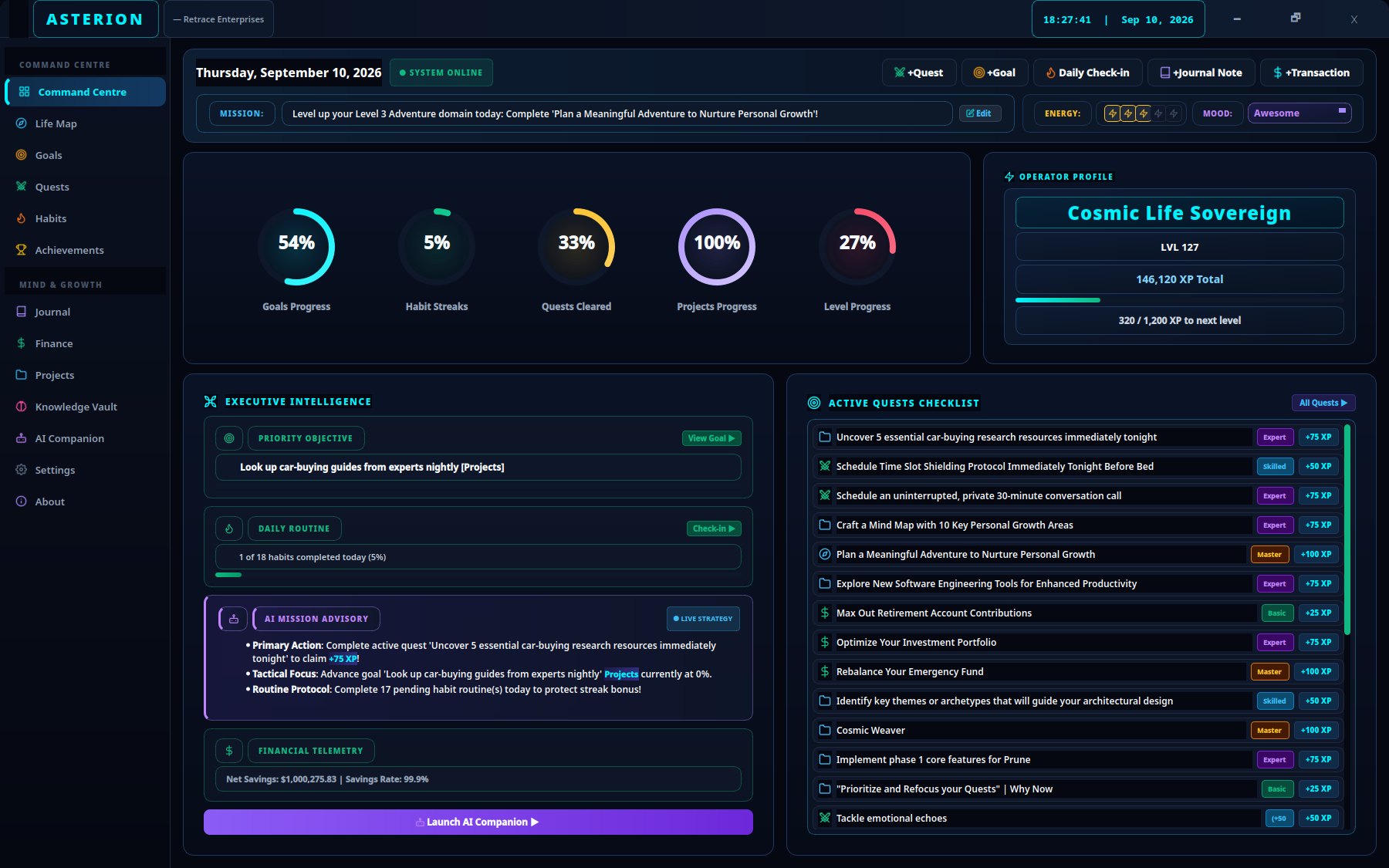
Asterion's Command Centre replaces the infinite backlog with a calibrated daily command deck. Inspired by aviation and space mission protocols, every session begins by anchoring three foundational metrics: your Daily Mission Directive, your Energy Telemetry, and your Mood Context. This ensures you commit only to what is realistically achievable today.
Calibrate Daily Telemetry & Mission Directive
Your daily mission is the navigational vector for everything that follows. It sits permanently in your Command Centre status display.
- Open Command Centre from the primary sidebar or press Alt+1.
- Select Edit beside the current mission banner to open the Daily Mission Command Centre dialog.
- Enter your core mission statement—for example:
Complete a learning project. - Using the AI Mission Generator: If you are unsure what to prioritize, click Generate AI Directive. Asterion evaluates your active quests, overdue deliverables, and domain balance to synthesize a high-leverage suggestion.
- Set your Energy (1 to 5) and Mood (Awesome, Good, Neutral, Low, Stressed). These values synchronize context for the AI Companion and your evening reflection.
- Click Update Mission to save your telemetry.
Pro-Tip: On low-energy days (Energy 1 or 2), keep your mission atomic (e.g., “Review chapter 2 notes”). Asterion’s RPG engine rewards consistency and streak preservation over unsustainable bursts.
Caution: A Daily Mission is an ephemeral focus statement for today’s session. It is intentionally separate from persistent Goal records in the Goals module. Do not confuse your daily mission with multi-month milestone outcomes.
Forge Today's Primary Quest
With your vector set, translate intention into a tactical quest. Quests in Asterion represent finite, executable units of work.
- In Command Centre, click +Quest on the Quick Command Action Dock.
- Enter a clear, actionable title:
Build a small prototype. - Assign a life domain: choose Learning (or Projects, Career, Health, etc.).
- Select a Difficulty Tier based on estimated cognitive resistance:
- Basic (+25 XP ★): Low activation energy; quick errands, admin chores, or file cleanup.
- Skilled (+50 XP ★★): Standard daily focus blocks (30–60 minutes of uninterrupted work).
- Expert (+75 XP ★★★): Mentally demanding deep work, complex debugging, or difficult synthesis.
- Master (+100 XP ★★★★★): Major creative breakthroughs or multi-hour sprint sessions.
- Select Create Quest. The quest immediately docks in your Command Centre active checklist.
XP Opportunity (+25 to +100 XP): Completing your daily quest immediately awards experience points that advance your Player Level and status bar rank in real time.
Balance the 9 Life Domains in Life Map
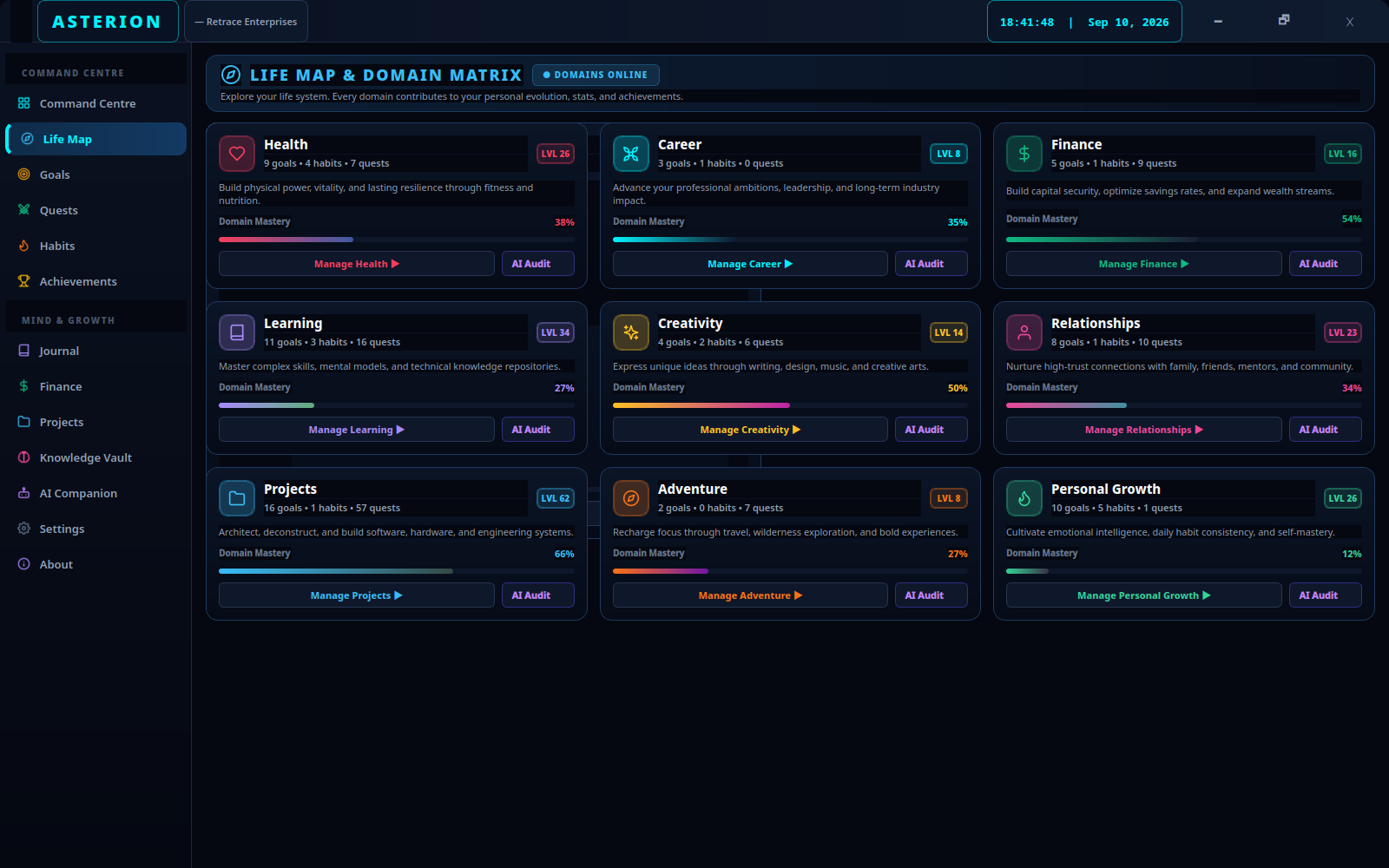
Productivity is wider than a software sprint. Asterion organizes your personal universe across nine distinct life domains.
- Open Life Map from the primary sidebar or press Alt+2.
- Inspect the 9 foundational domains:
- Health ❤️: Vitality, workouts, sleep, and physical endurance.
- Career 💼: Professional trajectory, vocational growth, and leadership.
- Finance 💰: Capital preservation, savings rate, and financial independence.
- Learning 📚: Reading, technical mastery, languages, and study.
- Creativity 🎨: Writing, art, design, and music.
- Relationships 🤝: Family, deep friendships, mentorship, and community.
- Projects 🚀: Side businesses, open source tools, and maker builds.
- Adventure ⛰️: Travel, outdoor exploration, and novelty.
- Personal Growth 🌱: Mindfulness, philosophical study, and self-mastery.
- Select any domain tile to inspect active quests, milestone goals, and streak history within that life area.
- Identify blind spots: if Health or Relationships shows zero recent activity, use it as a prompt to schedule a workout or send a note to a friend.
Workflow Deep-Dive: Domain Harmonization
True personal sovereignty is harmonious balance. Traditional apps allow you to hyper-optimize one area while neglecting health and family. Life Map acts as an unvarnished mirror, ensuring you move forward holistically across all facets of human existence.
Session Close & Sanctuary Transition
A clean day requires a definitive close. Leaving tasks ambiguous at bedtime creates cognitive residue that damages sleep.
- After completing your focused work block, locate your active quest in Command Centre and click Claim Quest.
- Watch the XP toast notification appear as your player progress bar updates.
- Click +Journal Note on the Action Dock or open Journal.
- Select the Evening Learnings tab. Record what went well, what created friction, and write down one clear next action for tomorrow morning.
- Select Save Sanctuary Entry (+20 XP).
Troubleshooting & Edge Cases
| Scenario | Diagnostic & Immediate Remedy |
|---|---|
| Quest does not appear on Command Centre | Command Centre displays your highest-priority active quests. Open Quests → All Quests to view the complete roster. Check if a domain filter is active in the Quests module. |
| Cannot find completed quests | Claimed quests are archived to prevent clutter. In the Quests screen, switch to the Cleared Quests tab to inspect all historical completed work and XP earned. |
| Daily Action goal reset unexpectedly | Goals configured with a Daily timeframe are programmed to reset their progress counter at midnight for repeated practice. For deliverables spanning multiple days, choose 1 Month or 3 Months. |
| AI Mission Directive is empty | The AI Mission Generator requires either a running local Ollama instance (with llama3.2:3b) or falls back to rule-based heuristics. Ensure your local service is active via systemctl status ollama or consult the AI Companion Guide. |